
Quick help
Choose the help you need: Paying by card or PayPal · Download a certificate · Already paid?
Download your certificate
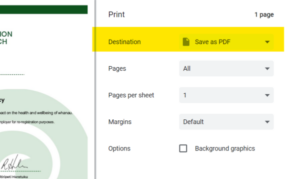
Sign in to My Certificates, open your completed course certificate and select Download PDF. Check your browser’s Downloads folder or save options. If your certificate is missing, tell us the course name and the email address you used to enrol so we can check your completion.
Paying by card or PayPal
Kia ora, you can use your card through PayPal’s guest checkout when that option is available. You do not need to create a PayPal account when checking out as a guest.
- Choose your course from Our Courses and select Enrol. If you already have a Mauriora account, sign in with your existing account.
- Complete your billing details and check that the course in your order summary is correct.
- Read and agree to the Terms and Conditions, then select Buy Now to continue to PayPal.
- At PayPal, sign in if you want to use your PayPal account. To pay without one, look for Pay with Debit or Credit Card or Check Out as a Guest. The wording can vary.
- Follow the prompts to enter your email address, card and billing details. If an optional Create account switch appears, leave it off to continue as a guest.
- Check the payment details, complete the payment and follow the return link to Mauriora. Open your Dashboard to access your course.
Cannot see the guest option? PayPal does not offer guest checkout in every situation. Contact us using the chat box or support@mauriora.co.nz and tell us what you see. Please do not send card numbers, passwords or security codes.
Already paid, or payment pending?
Please hold off paying again while we check your existing order. Send us your account email, course name and order or PayPal transaction reference through the chat box or support@mauriora.co.nz. Tell us whether the payment shows as pending or completed. We will check the payment and course access together.
Log in to the site, by clicking either the Dashboard, or Sign In links in the top or right hand side menus.
Once you have logged in to the site, click on the My Courses option from the dashboard sub-menu. Select the course you wish to access from the My Courses options that appear.
If you are not yet enrolled in to any courses, click on Courses at the top of the page and select the Register option for the course you would like to enroll in. Scroll down to halfway down the page and click on the Sign Up button. Fill in all your account information, and purchase the course by clicking the Buy Now button. If you are part of an organisation that is using vouchers to access the course, please refer to that question below for more information.
If you are new and don’t have an account with us yet:
- Go to Dashboard.
- Fill in all your details under the Register section.
- Click Have a voucher?
- Enter your voucher code.
- Click Register.
- You will now be enrolled into the course.
If you are already a member of our site:
- Log in to your account by clicking Dashboard or Sign In.
- On your Dashboard, click Have a Voucher? and enter in your voucher code.
- You will now be enrolled into the course.
- Have you tried logging out, closing your browser and then logging back in?
- Try using a different internet browser. Not all internet browsers are created equally and some are not completely compatible with some websites. We recommend Google Chrome.
- Is your Username and Password correct?
Please contact us on the chat box on the course page.
- What error message comes up on your screen (if any)?
- What were you doing on the course when the error occurred?
Each completed course is worth 8 CPD points.
The correct/incorrect answers are displayed at the end of taking the final assessment quiz. If you miss seeing these when they appear, you’re able to go back and view your results from previous quiz attempts by opening the course and going to the Final Assessment module. Click on Take Quiz. This will take you to a page where you are then able to continue and take the final assessment quiz again, or you are able to select from a dropdown box (located to the left of the page), previous quiz attempts. When you select one of these previous quiz attempts, it will display the questions and they will either be highlighted in green (correct) or red (incorrect).
On-site tailored workshops and seminars are also available by negotiation.
Enquire by calling 0800 628 746 or email us at support@mauriora.co.nz
If you are having difficulty accessing your account, please reset your password.
- Click Sign In
- Click on Lost your password?
- Enter your email address that is associated with your Mauri Ora account
- You will receive an email requesting you to change your password. Click the Reset Password button.
- Please enter your new strong password. For security reasons, we require all users have a strong password. This needs to include at least eight characters, including both upper and lower-case letters, numbers, and symbols. Once your password is strong enough, the password field will turn green.
- Please save this password in a safe place.
- Because of the complexity of the password, we find that most users copy and paste their password to ensure they haven’t mistyped it.
If you are still having difficulty accessing your account after resetting your password, please click on the chat icon in the bottom right hand corner of the screen, with the heading Need Help? Ask here.
Go to your Dashboard and click My Certificates.
Once you have opened your certificate, select Download PDF. Check your browser’s Downloads folder or save options. You no longer need to print the certificate to save it.
A quiz is posted at the end of each module.
You must answer all the questions correctly before you can move to the next module.
The correct and incorrect answer is displayed with a green tick, which is correct, and a red cross for an incorrect answer.
Your attempts are tracked, and you can access these plus the answer will appear if you click on the answer.
If you make mistakes, you can go back and view your results from previous quiz attempts.
A pending status alone does not confirm whether payment succeeded. Please hold off paying again while we check your existing order. Contact us using the chat box or support@mauriora.co.nz with your account email, course name and order or PayPal transaction reference. We will check the payment and your course access together.
For more information on pay equity, please contact your employer, or visit https://www.tewhatuora.govt.nz/for-health-providers/pay-equity-settlements/care-and-support-workers-pay-equity-settlement/pay-equity-and-qualification-equivalencies